Configure Device Scout
Change when a Device Scout discovers printers and collects data, which host addresses it scans, and how it communicates with printers. You make these changes in the web console, and the Device Scout picks them up the next time it checks in.
Before you begin
- The Device Scout is installed and reporting. See Install Device Scout.
- If you're changing host addresses, you have the list of printer IP addresses, ranges or hostnames from your network administrator.
Change the configuration
Open the configuration
Go to Discover > Device Scout, select the Device Scout, and select Configure. You can configure one Device Scout at a time.
Make your changes
Use the three tabs:
- General: schedules and communication settings. See General tab.
- Discover: the host addresses to scan. See Discover tab.
- Advanced: special-case settings. Leave these at their defaults unless Support asks you to change them. See Advanced tab.
Save
Select Save.
Result
The Device Scout picks up the new settings at its next configuration check, which is every 2 hours by default. To apply them now, on the server where the Device Scout is installed, open the Device Scout Configuration tool, go to the Tasks tab and select Refresh Tasks. See Use the Device Scout Configuration tool. The new host addresses then appear in the Device Scout Discovery application.
General tab
| Setting | What it does | Default |
|---|---|---|
| Device Discovery | When the Device Scout scans the network for printers: daily or weekly. | Weekly, Sunday |
| Discover Between | The time window for discovery. A random start time in this window is used. | 2:00 AM to 4:00 AM |
| Collect Device Status | How often printer status and alerts are collected. | Every 2 hours |
| Collect Toner Level | Toner levels are collected with device usage. To collect them on a different schedule, turn off Collect with usage and set how often. | Collected with device usage |
| Collect Device Usage Between | The time window for collecting meters and supplies. A random start time in this window is used. | 12:00 AM to 2:00 AM |
| Timeout | How long to wait for a printer to respond when scanning addresses or communicating with it. | 2,000 milliseconds (2 seconds) |
| Retries | How many times to try to find a printer at an address, or to collect one piece of information from it. | 3 |
Discover tab
Add the host addresses to include in or exclude from scanning. The Device Scout uses them for discovery and for collecting usage and status. If you don't add any, it scans only its own subnet, based on the IP address and subnet mask of its server.
Add a single address or a range
- A single address: select Host Address (IPv4, IPv6, Hostname), enter the IP address or hostname, and select Add.
- An IPv4 range: select IPv4 Range, enter the first and last IP addresses, and select Add Range. To exclude the range instead, select Exclude Range.
The addresses appear in List of Host Address. Select Save when you're done.
Import addresses from a file
To add many addresses at once, import a text file:
- Put each hostname, IPv4 address or IPv6 address on its own line.
- For a range, put the first and last IP addresses on one line, separated by a hyphen.
- To exclude an address or range, put it in parentheses.
For example, this file includes a range and a single address, and excludes a range:
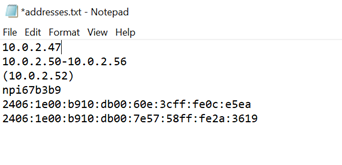
Select Select A File, choose the file, and select Import. The addresses appear in List of Host Address. Select Save.
Communication settings
These settings apply to discovery only, and override the Timeout and Retries on the General tab. Timeouts are more common when scanning ranges, and changing these settings can affect network load.
| Setting | What it does | Default |
|---|---|---|
| Timeout | How long to wait for a printer to respond. | 2,000 milliseconds (2 seconds) |
| Retries | How many times to try each address or piece of information. | 3 |
| Ping Frequency | The time between retries. | 20 milliseconds |
Advanced tab
Leave these settings at their defaults unless Support asks you to change them.
| Setting | What it does | Default |
|---|---|---|
| Perform Hostname Lookup | Looks up the hostname for each printer address. On some networks, especially those with static IP addresses for printers, the hostname can be wrong or meaningless. Turn it on only if your DNS information for printers is reliable. Device Scouts created before version 3.5.0 keep their existing setting. | Off |
| SNMP Community Strings | The strings used for SNMP communication with printers. Some printers use a non-default string for security. To add one, enter it in Add SNMP Community String and select Add String. To remove one, select it and select Delete. | public |
| Default Port Setting | The SNMP port used to communicate with printers. | 161 |
| Concurrency Limit | How many printers the Device Scout communicates with at the same time. A higher number makes scans faster but increases network load. | 10 |
| Configuration Polling Schedule | How often the Device Scout checks for new configuration. | Every 2 hours |
| Post Health Check Between | The time window for sending its own health information. | 8:00 PM to 12:00 AM |
| Offline Posting Between | The time window for resending printer information that failed to send earlier. | 12:00 AM to 3:00 AM |